All posts by nobby

Generate QR Code for WiFi

  1.  install ‘qrencode’ command.
    $ sudo apt install qrencode
  2. generate QR code png
    $ qrencode -o image.png 'WIFI:T:WPA;S:SSID;P:PASSWORD;;'
Parameter Example Description
T WPA Authentication type; can be WEP or WPA, or leave empty for no password.
S SSID Network SSID. Required.
P pasXXXX Password, ignored if T is left blank.
H true Optional. True if the network SSID is hidden.

Install Nextcloud on Ubuntu 20.04

Snaps are discoverable and installable from the Snap Store, an app store with an audience of millions.

  1. install nextcloud from snap package.
    $ sudo snap install nextcloud
  2. Check nextcloud information.
    $ snap info nextcloud
  3. Get connections list
    $ snap connections nextcloud
  4. Setup Next Cloud by new admin. user.
    $ sudo nextcloud.manual-install 'admin user' 'admin password'
  5. Setup fqdn hostname.
    $ sudo nextcloud.occ config:system:set trusted_domains 1 --value=example.com
  6. Conform domains.
    $ sudo nextcloud.occ config:system:get trusted_domains
  7. ufw & SSL (TLS) cert. setup.
    $ ufw allow 80
    $ ufw allow 443
    and then
    $ sudo nextcloud.enable-https lets-encrypt
  8. Finally check NextCloud functional.
    access Next Cloud !

Change ssh port , CentOS 8

Cent OS support firewall-cmd & SeLinux, Its environment understood not easily. 
ssh port changing is very easy !
Edit /etc/ssh/sshd_config. Find “# Port 22″ and change to Port xxxx” (xxxx is your specified).

# If you want to change the port on a SELinux system, you have to tell
# SELinux about this change.
# semanage port -a -t ssh_port_t -p tcp #PORTNUMBER
#
Port xxxx <--- Change your specified port number.
#AddressFamily any
#ListenAddress 0.0.0.0
#ListenAddress ::

if execute “sudo systemctl restart sshd.service”, you can find error messages. And execute “sudo systemctl status sshd.service”

 sshd.service - OpenSSH server daemon
   Loaded: loaded (/usr/lib/systemd/system/sshd.service; enabled; vendor preset:
 enabled)
   Active: activating (auto-restart) (Result: exit-code) since Sat 2019-12-07 20
:37:23 EST; 33s ago
     Docs: man:sshd(8)
           man:sshd_config(5)
  Process: 3016 ExecStart=/usr/sbin/sshd -D $OPTIONS $CRYPTO_POLICY (code=exited
, status=255)
 Main PID: 3016 (code=exited, status=255)

Dec 07 20:37:23 red systemd[1]: sshd.service: Failed with result 'exit-code'.
Dec 07 20:37:23 red systemd[1]: Failed to start OpenSSH server daemon.

You have to do 2 things.

  1. ssh service redefine.
  2. selinux setting.


Step1: Edit /usr/lib/firewalld/services/ssh.xml

<service>
<short>SSH</short>
<description>Secure Shell (SSH) is a protocol for logging into and executing commands on remote machines. It provides secure encrypted communications. If you plan on accessing your machine remotely via SSH over a firewalled interface, enable this option. You need the openssh-server package installed for this option to be useful.</description>
<port protocol="tcp" port="22"/> <--- Change your specified port number. </service>

Step 2: Execute following commands.

# semanage port -a -t ssh_port_t -p tcp xxxx <--- Change your specified port number.


Check & Restart openssh-server !

Ubuntu 18.04 phpmyadmin error

Browse data issues

Edit /usr/share/phpmyadmin/libraries/sql.lib.php
Line 613

        && ((empty($analyzed_sql_results['select_expr']))
|| (count($analyzed_sql_results['select_expr'] == 1)
&& ($analyzed_sql_results['select_expr'][0] == '*')))
&& count($analyzed_sql_results['select_tables']) == 1;

Change Red to Blue

        && ((empty($analyzed_sql_results['select_expr']))
|| ((count($analyzed_sql_results['select_expr']) == 1)
&& ($analyzed_sql_results['select_expr'][0] == '*')))
&& count($analyzed_sql_results['select_tables']) == 1;

Import/Export issues

Edit /usr/share/phpmyadmin/libraries/plugin_interface.lib.php
Line 551


$no_options = true;
if ($options != null && count($options) > 0) {
foreach ($options->getProperties()

Change Red to Blue

      $no_options = true;
if (! is_null($options) && count((array)$options) > 0) {
foreach ($options->getProperties()

Setup OneDrive in Ubuntu 18.04

Install OneDrive deb package.

$ sudo apt install onedrive

Sync OneDrive on user directory.

$ onedrive
Authorize this app visiting:

https://login.microsoftonline.com/common/oauth2/v2.0/authorize?client_id=xxxxxxxxxxxxxxxxxxxxxxxx&scope=files.readwrite%20files.readwrite.all%20offline_access&response_type=code&redirect_uri=https://login.microsoftonline.com/common/oauth2/nativeclient

Login to Your OneDrive Account then copy displayed URL of white page.
Paste to excution terminal.

enable user systemctl (daemonic).

After syncing, execute following daemon

$ systemctl --user enable onedrive
$ systemctl --user start onedrive

Reset Account or Change password or Login ID

$ systemctl --user stop onedrive

If do not need backup

$ rm -r .config/onedrive

else

$ mv .config/onedrive 'backup directory/'

reexcute ‘onedrive’ after these step.

Ubuntu LTS update

Release upgrade

ex. 18.04.x -> 20.04

$ sudo do-release-upgrade -d

Minor upgrade 16.04.x -> 16.04.3


ex. 16.04.2 -> 16.04.3
20.04, Not available now.(June 10)

DeskTop:

$ sudo apt install --install-recommends linux-generic-hwe-16.04 xserver-xorg-hwe-16.04

Server:

$ sudo apt install --install-recommends linux-generic-hwe-16.04

Ubuntu 18.04 network setting

Use Netplan

Put under directory ‘/etc/netplan/’.
example; 50-cloud-init.yaml
After Edit, command “netplan”  for checking option “netplan try” and for actual seting “netplan apply”.

To let the interface named ‘enp2s0’ get an address via DHCP:

network
  version: 2
  renderer: networkd
  ethernets:
    enp3s0:
      dhcp4: true

To instead set a static IP address, use the addresses key, which takes a list of (IPv4 or IPv6), addresses along with the subnet prefix length (e.g. /24). Gateway and DNS information can be provided as well:

network:
    ethernets:
        enp2s0:
            dhcp4: no
            dhcp6: no
            addresses: [192.168.1.20/24]
            gateway4: 192.168.1.1
            nameservers:
                    addresses: [192.168.1.1]
#if use static route
            routes:
            - to: 192.168.11.0/24
                via: 192.168.1.254
    version: 2

Connecting to an open wireless network

Netplan easily supports connecting to an open wireless network (one that is not secured by a password), only requiring that the access point is defined:

network:
  version: 2
  wifis:
    wlp1s0:
      access-points:
        opennetwork: {}
      dhcp4: yes

Connecting to a WPA Personal wireless network

Wireless devices use the ‘wifis’ key and share the same configuration options with wired ethernet devices. The wireless access point name and password should also be specified:

network:
  version: 2
  renderer: networkd
  wifis:
    wlp2s0:
      dhcp4: no
      dhcp6: no
      addresses: [192.168.0.21/24]
      gateway4: 192.168.0.1
      nameservers:
        addresses: [192.168.0.1, 8.8.8.8]
      access-points:
        "network_ssid_name":
          password: "**********"

Connecting to WPA Enterprise wireless networks

It is also common to find wireless networks secured using WPA or WPA2 Enterprise, which requires additional authentication parameters.

For example, if the network is secured using WPA-EAP and TTLS:

network:
  version: 2
  wifis:
    wlp2s0:
      access-points:
        workplace:
          auth:
            key-management: eap
            method: ttls
            anonymous-identity: "@internal.ntools.net"
            identity: "man@internal.example.com"
            password: "sOPsw1Yas"
      dhcp4: yes

Using multiple addresses on a interface

The addresses key can take a list of addresses to assign to an interface:

network:
  version: 2
  renderer: networkd
  ethernets:
    enp3s0:
     addresses:
       - 10.100.1.38/24
       - 10.100.1.39/24
     gateway4: 10.100.1.1

Interface aliases (e.g. eth0:0) are not supported.

Using multiple addresses with multiple gateways

Similar to the example above, interfaces with multiple addresses can be configured with multiple gateways.

network:
  version: 2
  renderer: networkd
  ethernets:
    enp3s0:
     addresses:
       - 9.0.0.9/24
       - 10.0.0.10/24
       - 11.0.0.11/24
     #gateway4:    # unset, since we configure routes below
     routes:
       - to: 0.0.0.0/0
         via: 9.0.0.1
         metric: 100
       - to: 0.0.0.0/0
         via: 10.0.0.1
         metric: 100
       - to: 0.0.0.0/0
         via: 11.0.0.1
         metric: 100

Configuring interface bonding

Bonding is configured by declaring a bond interface with a list of physical interfaces and a bonding mode. Below is an example of an active-backup bond that uses DHCP to obtain an address:

network:
bonds:
bond0:
addresses:
- 192.168.1.5/24
gateway4: 192.168.1.1
interfaces:
- enp1s0
- enp2s0
nameservers:
addresses:
- 192.168.1.1
search:
- ntools.net
parameters:
mode: balance-rr
primary: enp1s0
ethernets:
enp1s0: {}
enp2s0: {}
version: 2

Below is an example of a system acting as a router with various bonded interfaces and different types. Note the ‘optional: true’ key declarations that allow booting to occur without waiting for those interfaces to activate fully.

network:
  version: 2
  renderer: networkd
  ethernets:
    enp1s0:
      dhcp4: no
    enp2s0:
      dhcp4: no
    enp3s0:
      dhcp4: no
      optional: true
    enp4s0:
      dhcp4: no
      optional: true
    enp5s0:
      dhcp4: no
      optional: true
    enp6s0:
      dhcp4: no
      optional: true
  bonds:
    bond-lan:
      interfaces: [enp2s0, enp3s0]
      addresses: [192.168.93.2/24]
      parameters:
        mode: 802.3ad
        mii-monitor-interval: 1
    bond-wan:
      interfaces: [enp1s0, enp4s0]
      addresses: [192.168.1.252/24]
      gateway4: 192.168.1.1
      nameservers:
        search: [ntools.net]
        addresses: [8.8.8.8, 8.8.4.4]
      parameters:
        mode: active-backup
        mii-monitor-interval: 1
        gratuitious-arp: 5
    bond-conntrack:
      interfaces: [enp5s0, enp6s0]
      addresses: [192.168.254.2/24]
      parameters:
        mode: balance-rr
        mii-monitor-interval: 1

Configuring network bridges

To create a very simple bridge consisting of a single device that uses DHCP, write:

network:
  version: 2
  renderer: networkd
  ethernets:
    enp3s0:
      dhcp4: no
  bridges:
    br0:
      dhcp4: yes
      interfaces:
        - enp3s0

A more complex example, to get libvirtd to use a specific bridge with a tagged vlan, while continuing to provide an untagged interface as well would involve:

network:
  version: 2
  renderer: networkd
  ethernets:
    enp0s25:
      dhcp4: true
  bridges:
    br0:
      addresses: [ 10.3.99.25/24 ]
      interfaces: [ vlan15 ]
  vlans:
    vlan15:
      accept-ra: no
      id: 15
      link: enp0s25


Proxy used

edit /etc/environment

example; LAN

http_proxy="http://192.168.1.1:8080/"
https_proxy="http://192.168.1.1:8080/"
no_proxy=localhost,127.0.0.1,192.168.0.0/16


example; external proxy

http_proxy="http://[user:password@]host.xxxx.net:8080/"
https_proxy="http://[user:password@]host.xxxx.net:8080/"
no_proxy=localhost,127.0.0.1,192.168.0.0/16


EZpad 6 Pro + SDD

Do you think 64GB storage, is it enough ?

If it is for only “Office 2016” , I think it is enough storage capacity. However when go on business trip, I wanna sea my favorite movies and listen music. And if have to make software ….

I found EZpad 6s Pro model !  What’s different ?? It is only one, EZpad 6s Pro has SATA SSD.

I thought ‘6 pro’ has SATA socket. Actually , exists M.2 SATA (NGFF) for 2245 or 2260 SSD. Resultly my EZpad 6 Pro became high specification EZpad 6s Pro, 256GB SSD + 64GB eMMC.

However it is not easy, opening EZpad 6 Pro tablet PC. A reference video is https://www.youtube.com/watch?v=GjlcoRpHdCI.

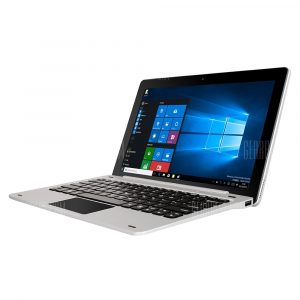
EZpad 6 Pro

Highlights

Jumper EZpad 6 Pro is equipped with a 11.6 inch 10-point touch FHD IPS display, brings your photos and videos to life. Powered by Intel Apollo Lake N3450 processor, ensures high performance. Designed with HDMI output, allows you to connect it to monitors, TV or projectors, perfect for creating your personal home theater.

Microsoft Windows 10 OS

Windows 10 brings back the popular Start Menu from Windows 7 and introduces new features, like the Edge Web browser that lets you mark up Web pages on your screen

Intel Apollo Lake N3450 Quad Core 1.1GHz, up to 2.2GHz

Ultra-low-voltage platform and quad-core processing provide maximum high-efficiency power. Intel Turbo Boost Technology delivers dynamic extra power when you need it

11.6 inch 10-point Touch FHD IPS Screen

Offering good experience for watching videos and browsing the Web. The 1920 x 1080 resolution screen boasts impressive high-quality images

6GB DDR3 RAM for Advanced Multitasking

Substantial high-bandwidth RAM offers you a high-impact gaming experience, ensures smooth operation and stable multitasking using feeling

64GB eMMC ROM Storage Capacity

Provides room to store pictures, videos, music and more

128GB TF Card Expansion

Accepts compatible cards up to 256GB ( not included ) for easy expansion

Camera for Photos and Face-to-face Chat

2.0MP front camera allows you to capture memorable moments or chat with friends

HDMI Output Expands Your Viewing Options

You can connect the device to an HDTV or high-definition monitor to set up two screens side by side or just enlarge pictures.

BIOS problems (Bug !)

Why this setting exists ‘Windows’, ‘Android’, ‘Win7’, ‘Intel Linux’ and ‘MS-DOS’  in Chipset – South Chip – OS ? Default setting is ‘Windows’. In thins mode unable to boot Ubuntu, Android and all install USB media except Windows10.  If changes to other setting ………. No displays internal LCD !! However external display can be view Ubuntu, Android and other install media bootstrap process including Windows10 install media.

TF Card (Micro SD) BUG

Unable to write permission and unchangeable file system.  Anyhow files are created strange and unuseful.

If you find New EZpad 6 Pro BIOS, Please contact to me !!

Extended SSD

Show https://ntools.org/ezpad-6-pro-sdd/.

Specification

General Brand: Jumper
Model: EZpad 6 Pro
RAM: 6GB, DDR3L
OS: Windows 10
GPU: Intel HD Graphics 500
CPU Intel(R) Celeron(R) CPU N3450 6W Quad Core, 1.1GHz ~ 2.2GHz
Average CPU Mark 1795
Storage 64GB eMMC
External Memory: TF card up to 128GB (not included)
Display Screen type: IPS capacitive touch screen
Screen size: 11.6 inch
Screen resolution: 1920 x 1080 (FHD)
Network Support Network: WiFi
WIFI: 802.11 b/g/n wireless internet
Bluetooth: Yes
Camera Camera type: Single camera
Front camera: 2.0MP
Connectivity USB3.0*1
Mini HDMI*1
3.5mm Headset*1
TF Card Slot*1
DC jack*1
Power Battery type: Li-ion battery, 3.7V / 9000mAh
Power device Type: AC Adapter, 100-240V
Charging voltage: DC 12V / 2-3A
Multimedia Video format: (1080P)AVI/MOV/MP4/RMVB/FLV/MKV
Audio format: MP3/WMA/WAV/APE/AAC/FLAC/OGG
Picture format: JPG/BMP/PNG/GIF
Ebook format: UMD/TXT/PDF/HTML/RTF/FB2
Other Features Sensor: G-sensor
Speaker / MIC: Built-in stereo speakers and microphone
Languages: Windows OS is pre-installed English, and other languages need to be downloaded by WiFi.
Softwares: Youtube, Skype, MS Office, Microsoft Edge, Email, Gallery, Clock, Calculator, Calendar, etc.
Dimensions Product size: 40.20 x 23.20 x 5.10 cm
Product weight: 1.1kg
Package Contents 1 x Tablet
1 x Charger (A right plug of adapter will be sent as your shipping country)
1 x User Manual
1 x Magnetic Keyboard